
| Already clicked a link or entered your password? Tell us straight away at helpdesk@ozharvest.org. If you can't get into your email, submit a ticket here instead. The sooner we know, the faster we can protect your account. |
Summary: How to spot a scam email pretending to be from OzHarvest, and what to do if you get one.
1. Red flags to look for
Be suspicious of any email where:
- Bank details have suddenly changed
- It's urgent, secret or "just this once"
- The sender's address is slightly off
- There are links, attachments or QR codes you weren't expecting
- It asks you to sign in or "verify" your account
- You're pressured to skip the normal approval process
2. What to do if something looks wrong
- Stop. Don't click, reply or pay.
- Verify. Call the sender on a number you already have, not one in the email.
- Get a quick opinion. Take a screenshot of the email and ask Claude whether it looks like a scam.
- Report it in Outlook. Select the email, click Report and choose Report phishing. On your phone, open the email, tap the … menu and choose Report phishing. This removes it from your inbox and helps Microsoft block similar emails.
- Let us know at helpdesk@ozharvest.org if it looked targeted at OzHarvest, so we can warn other staff.
3. A real example from our inboxes
Staff received this fake "2026 Salary Increase" email. It used our logo and "OzHarvest" as the sender name, then asked you to scan a QR code to sign a document. HR never does this. The code led to a fake login page built to steal passwords.
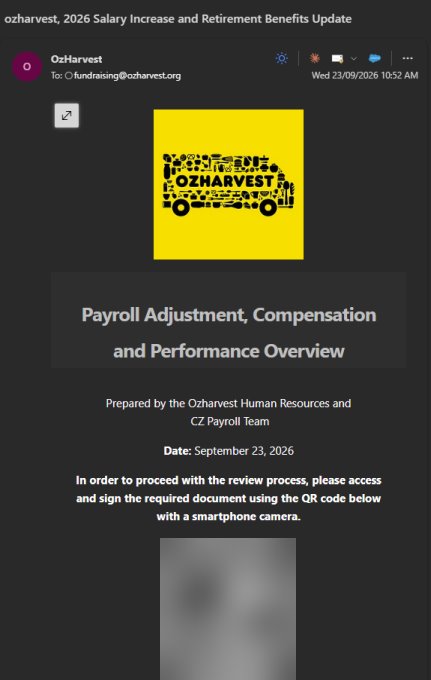
We've also seen fake "Team Meeting" invites from senders like "OzHarvest||7443", and emails addressed to senior staff by name.
4. Outlook's external email warnings
Outlook gives you a few clues when an email comes from outside OzHarvest. None of them mean an email is a scam. They're a reminder to slow down and check.
The pink "Please be careful" banner
Emails from outside OzHarvest show a pink "Please be careful" banner at the top of the message, in both light and dark mode.
- What it means: the email came from outside OzHarvest. Slow down and check before you click.
- What it doesn't mean: it's not a scam alarm. Genuine emails get it too, like donation notices and supplier emails.
- Bonus clue: "You don't often get email from…" means it's a first-time sender.

Outlook's external sender tag
Outlook also adds its own bar above the message saying "This sender … is from outside your organization", with a Block sender button. Check that the address shown in that bar matches who the email claims to be from.
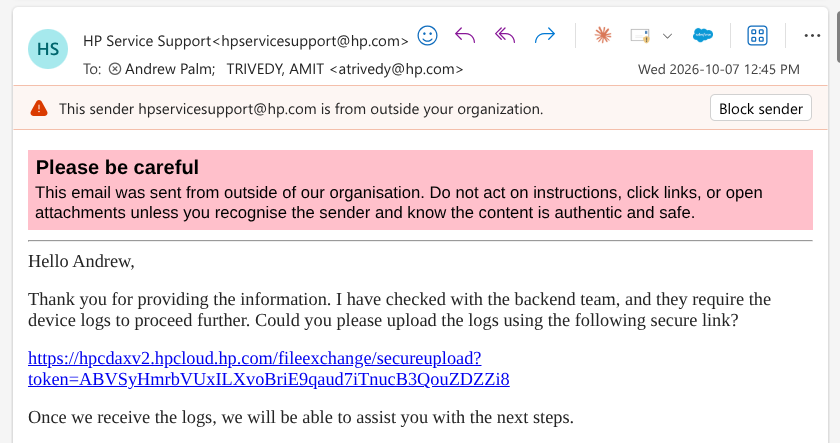
This example is a genuine support email from a supplier, which is a good reminder: the warnings tell you where an email came from, not whether it's safe. It still asks you to click a link, so check it was expected before you do.
Got a "You have messages in quarantine" email?
That's Microsoft holding back suspicious emails before they reach you. See Quarantine emails from Microsoft 365 for what it means and what to do.
Need help?
Email helpdesk@ozharvest.org or submit a ticket. If you're unsure about an email, ask us before you click. We'd rather check ten genuine emails than miss one scam.