

This guide will help you configure Outlook on your mobile with your OzHarvest email account.
Setting Up Outlook on Your Mobile for OzHarvest
- Download the Outlook app from your phone's app store (App Store or Google Play).
For Google devices, click here
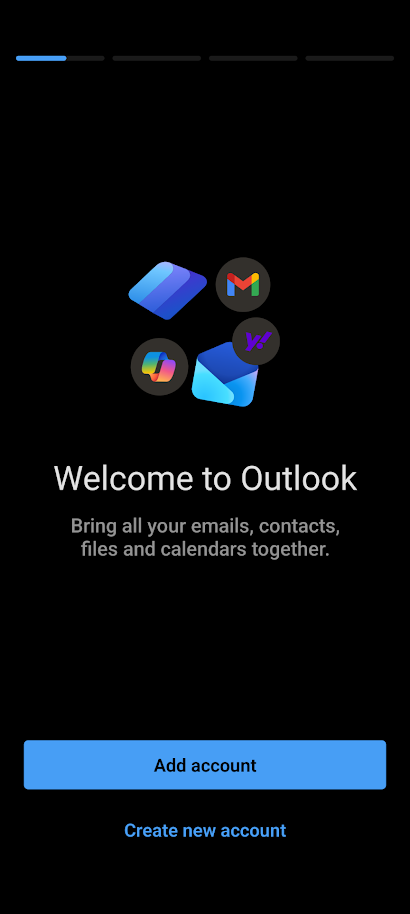
For Apple devices, click here - Once installed, open Outlook and tap Add Account. If you already have an account set up on your phone, tap your profile picture in the top left corner, then tap Add Account.
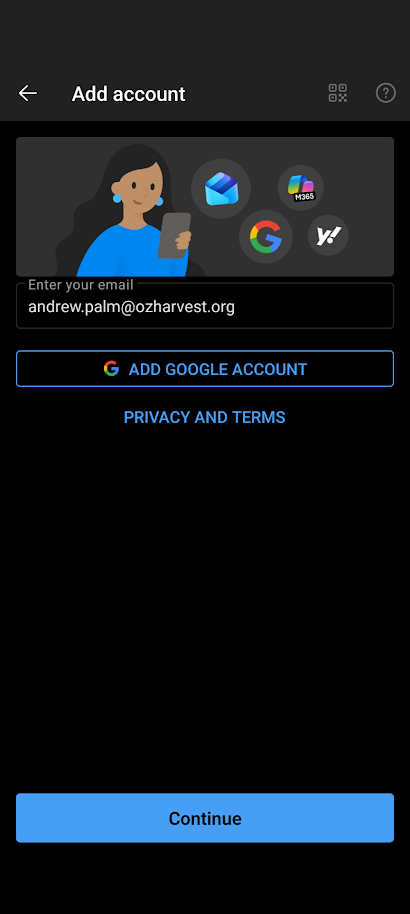
- Enter your OzHarvest email address, then tap Continue.
- Enter your OzHarvest account password and complete MFA when prompted.
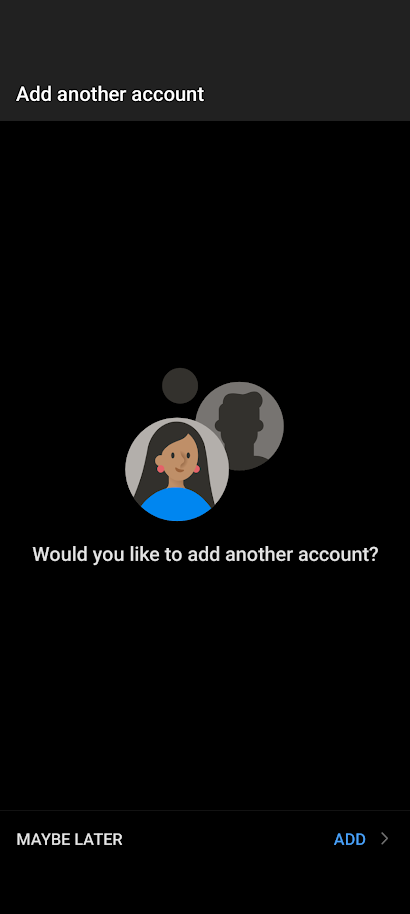
- Once added, tap Maybe Later on the prompt to add another account.
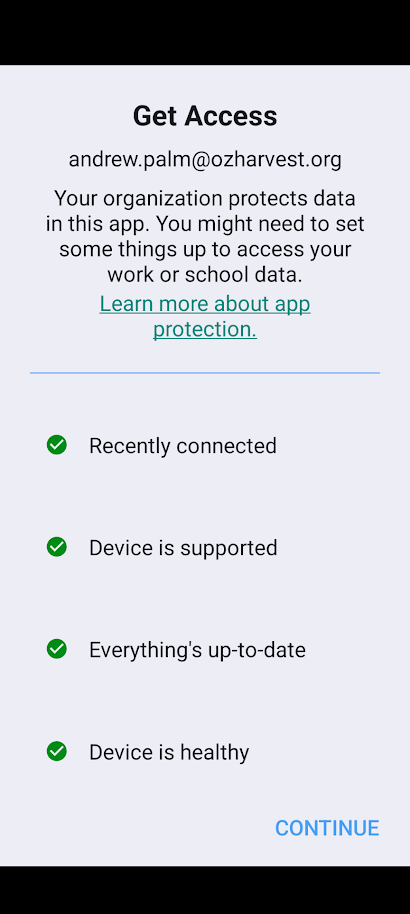
- A quick check of your device will run to confirm it's up to date and secure. Tap Continue when prompted.
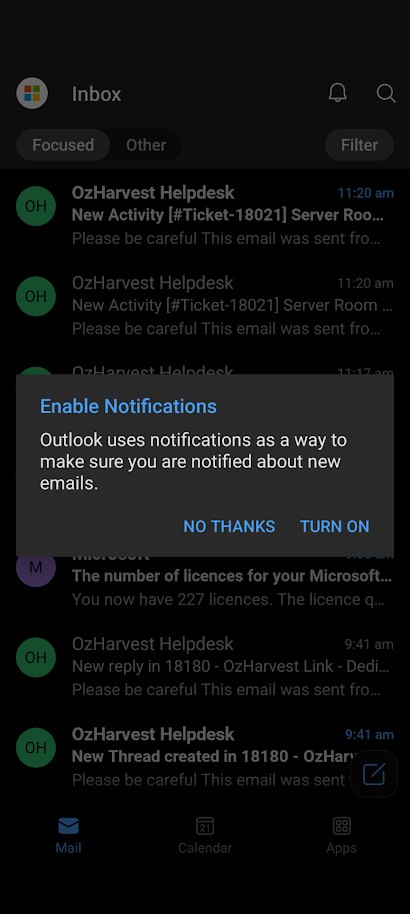
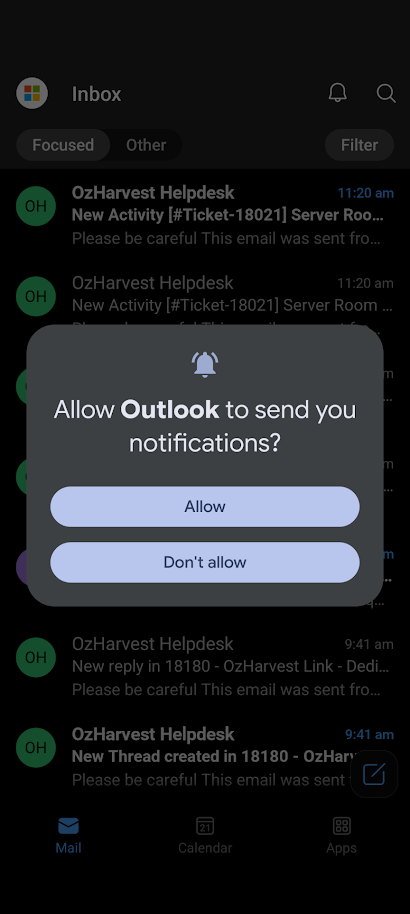
- Tap Turn On, then Allow, to enable notifications so you don't miss any messages.
- You're all set. If you need access to a shared mailbox, see our guide Outlook - Adding a Shared Mailbox : OzHarvest.
Need a hand? Just reach out to helpdesk.