This guide allows you to setup the UniFi Endpoint on your Android mobile. UniFi Endpoint is used to unlock doors at selected OzHarvest sites around Australia.
Using an Android instead? Follow the Android setup guide here.
Step 1: Download the App
Download the UniFi Endpoint App - App Store
Step 2: Open and Sign In
- Open the UniFi Endpoint app.
- On the sign-in screen, tap Sign In.
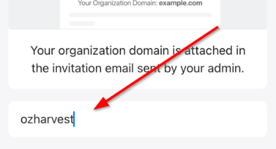
- Enter OzHarvest and tap Continue.
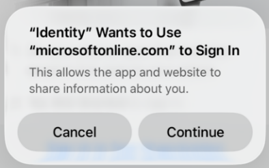
- At the "Identity wants to use microsoftonline.com to sign in" prompt, tap Continue.
- If prompted, sign in using your OzHarvest email login credentials.
Step 3: Complete Setup
- If prompted, tap Allow While Using App to enable location access.
- If prompted, tap Allow to enable notifications.
- Face Unlock (optional): Tap Upload Face Photo to set up Face Unlock, or tap Not Now to skip this step.
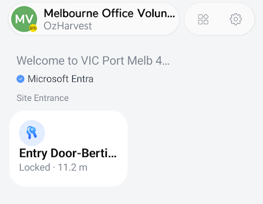
- Tap the Door icon under Site Entrance. If prompted, tap Allow to let UniFi Endpoint find Bluetooth devices.
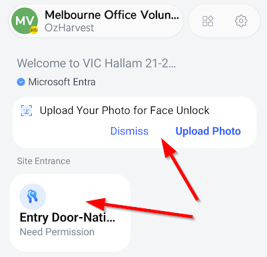
You're all set up! ✅
Unlocking a Door
To unlock the nearest door, either:
- Open the Endpoint application and tap the Door icon within the app, or
- Tap your phone against the reader to unlock.