
Shared Salesforce Accounts
- A person has an account which is shared with other users
- A person has 2 or more accounts
- There is the default/main account for the user, and there is a shared account.
A shared account must be accessed on an isolated browser session so it does not clash with the staff’s default/own account.
The steps below are a must for anyone who is accessing a shared account on an OzHarvest Laptop. Not following these steps will cause account and license related issues for the logged-on user account. For example, if steps are not followed in the staff’s work laptop, then the newly introduced shared account will start replacing the original user access and breaking the computer setup.
For your Salesforce (SF) access you will be using a shared team account. Please follow the steps below in the exact order to access SF.
- Open Edge browser
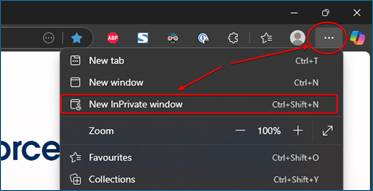
- In Edge browser, click on three on top-right as shown and open a new InPrivate window. This will open a new isolate session of Edge browser session.
- In the InPrivate window, you will now need to visit the SF login page mentioned below. Make sure you bookmark this in your browser.
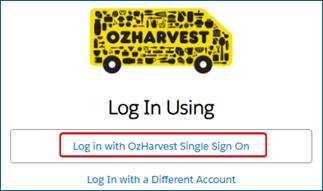
https://ozh.my.salesforce.com/ - Once you land on the SF login page, please clock on “Log in with OzHarvest Single Sign On” as shown below.
- When you click on “Log in with OzHarvest Single Sign On”, you will be re-directed to the OzHarvest Microsoft login page. It will look like below.
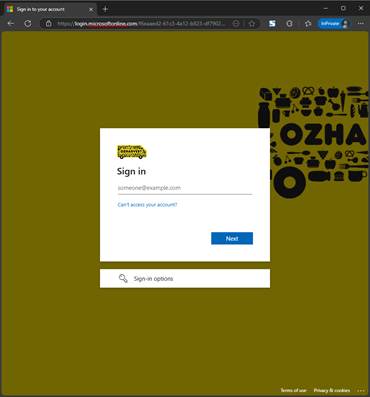
- On the Microsoft login page, sign in by entering Microsoft login for the shared user, eg, nourish.adelaide@ozharvest.org if you are a new Nourish user in Adelaide - please see Ruth on where to collect the password. Likewise if you are sharing another account – check with other share users for that login and obtaining particular advice on that.
- Complete MFA when prompted.
Please note, you will need to set a meeting with me after you start to help you setup MFA for nourish.adelaide@ozharvest.org account, or for the appropriate shared account. - Once you complete MFA, you will be redirected back to the OzHarvest Salesforce site.
Please keep this doc handy for future reference. Any question, please let IT know.