
How to log in to Salesforce Add-in in Outlook
- Open an email in Outlook, that you would like to be attached into SalesForce. Click on the SalesForce icon in the Menu bar to open the Salesforce box.
- You may click on the PIN icon to pin the Salesforce box to keep it active for the duration of Outlook being open. This helps to avoid log out issues of SalesForce plug-in. See below screenshot. Click on “Log in to Salesforce” to initiate the login prompt.
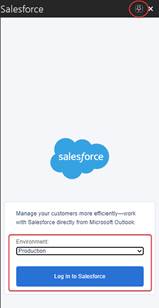
- Click on “Log in to Salesforce” a box like below will appear. In the login page, if you do not see the OzHarvest Van login page then you need to click on “Use Custom Domain” to enter the OzHarvest customer domain details as shown below.
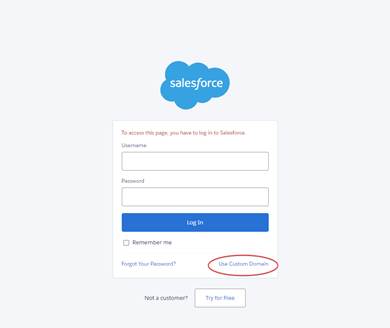
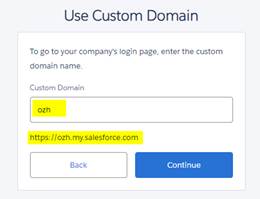
- Enter “ozh” as the customer domain name and the customer domain will display as https://ozh.my.salesforce.com as shown below and click on continue.
- You will be re-directed back to login page but this time you will see the OzHarvest Van logo, which confirms you are on the OzHarvest login page. Click “Log in with OzHarvest Single Sign On” and you will be logged in to SalesForce within Outlook.
Please note, you must PIN the SalesForce box to keep SF sessions are kept alive by Outlook and to ensure you do not experience any login issues.
To Log an Email
(See also below to Log on Sending an Email)
Click on the email to highlight it
Click on the Salesforce for Outlook add-in, if not already open
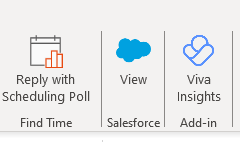
Choose your SF recipient (may be a contact or a user) to which you wish to log the email.
Untick Account if not to be logged against it.
Untick Attachments option unless you are certain there is an attachment to the email which you also wish logged (do this only if necessary)
Log your email
To UnLog an Email
Click on the email (in Outlook)
Select the SF Addin for Outlook if not open
It will say that the email is logged, and underneath are the options used to log the email.
Untick everything
Click Save
To Log on Sending an Email
In the email message window, where a new email, reply, forward, etc, is to be created, the Salesforce Plugin is available in the menu.
Select it and then turn on the Log on Send toggle:-
If the toggle is greyed out, it is because SF could not find any immediate obvious records to log against. If so, go to the next step to Pick Records.
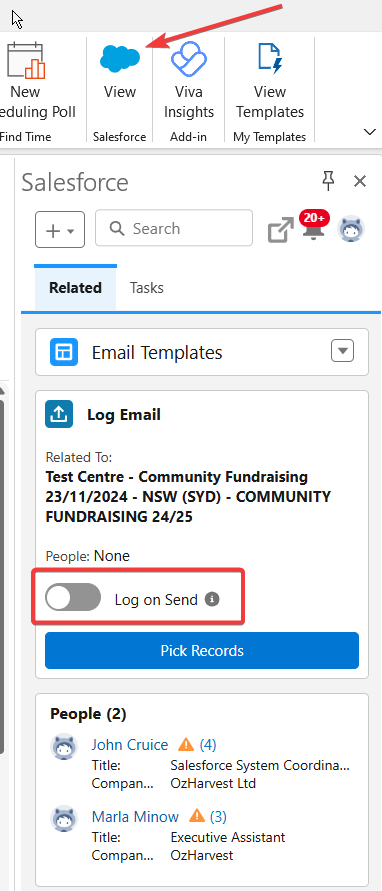
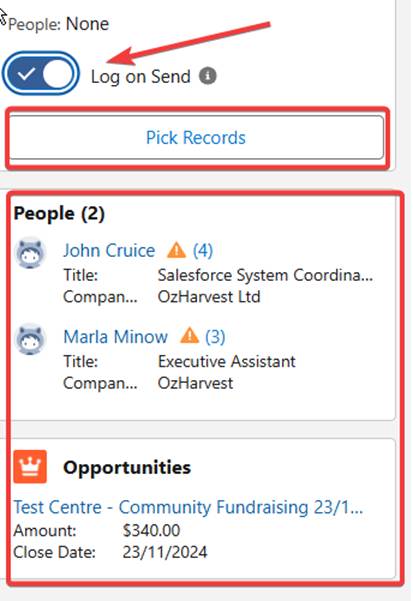
You will see an option to Pick Records that you wish to log against and below that an immediate suggested list of possible records to log against.
Once you click on Pick Records, you will see at the top a search box which may default to a search of contacts or accounts and then, below that, a suggested list, which now have a tick box beside them (remember that “People” can be SF users and Contacts).
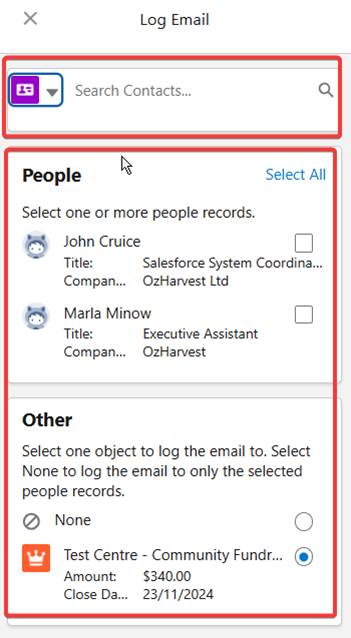
Any contacts, accounts, campaigns, etc (you can click on the down-arrow next to the Contact icon) that you select from the search box will be added to the list below with a tick in the box beside them.
Once you are happy with your ticked selection, click on Save and continue your email.
(Note: you will notice an email address has been added to your Bcc.)
Logging Emails from a Shared or Generic Email Account
It is now possible to log Outlook emails to SF records from shared/generic email accounts. To do this, you first need to make a few changes to your personal SF settings:-
- Click on your SF icon, and then on Settings:-
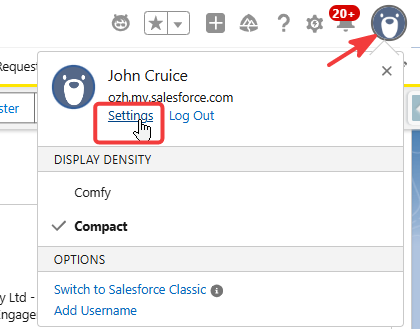
- Go to Email, then to My Email to Salesforce
- In the section, My Acceptable Email Addresses, add in the shared account/s, separated by commas as instructed.
- Save
Now, when you are in your shared account, log into SF Addin with your own account as usual. Once done, it is possible to log emails from this shared account.