
How to login to SalesForce (SF) website
- In your OzHarvest issued laptop, open Microsoft Edge Browser and visit OzHarvest SalesForce website https://ozh.my.salesforce.com/. This may need to be done in the InPrivate Window of Microsoft Edge on the first successful occasion, if the attempt above in the normal window fails.
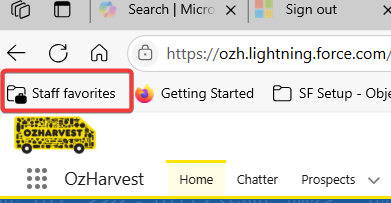
There is no need to memorise or save the above website. In your browser, where the favourites are listed, you will see on the far left the “Staff favorites”. It is listed in that group. Note the other common sites in that group.
- Click on "Log in with OzHarvest Single Sign On" to login to SF via the Single Sign On (SSO) feature as shown below.
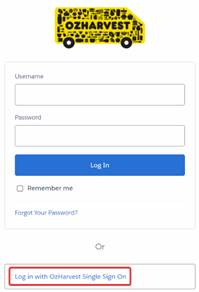
- After clicking on "Log in with OzHarvest Single Sign On" you will be automatically logged in to SalesForce.
- If you are asked for a password, you use your Microsoft login password.
Notes
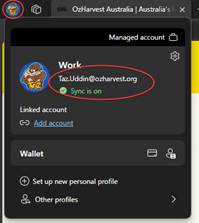
- Microsoft Edge browser in your OzHarvest laptop is already pre-authenticated to allow login to SF via the SSO feature. But for this feature to function correctly, you must ensure Microsoft Edge browser is logged in with your username and has green tick on top-left corner of Edge as shown below.
- In some rare occasions, SSO may trigger further authentication where it will prompt you to complete MFA. If so, please complete the MFA prompt right away. Ignoring the MFA prompt will cause the SF login to fail and may lock up the account.
- Shared logins require special setup of authentication – refer to SF Shared Accounts docx for instructions.
- If in case the SSO feature is failing, restart your computer and log in to desktop using your password or passkey (please note, laptop password is same as your email login password).