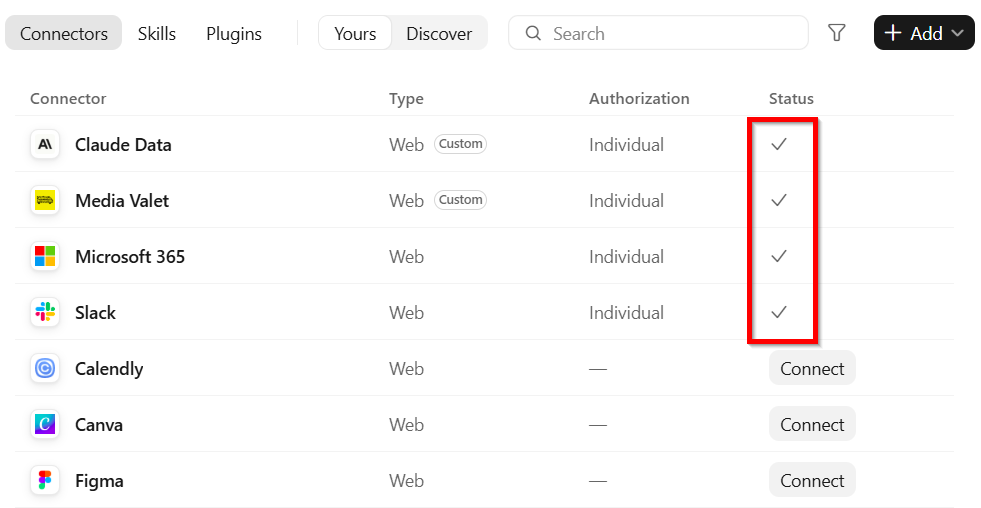
We have the following guides to assist with connecting external applications to Claude.
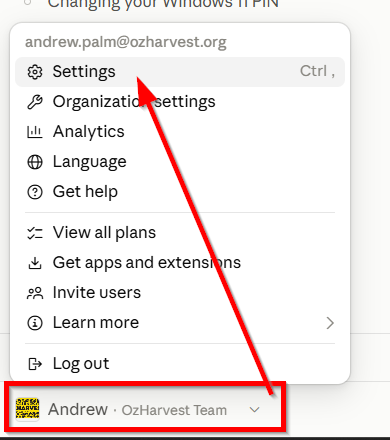
Head to the connectors settings in Claude, by opening Claude, clicking your name in the bottom left corner, then going Settings
Then click on Customize
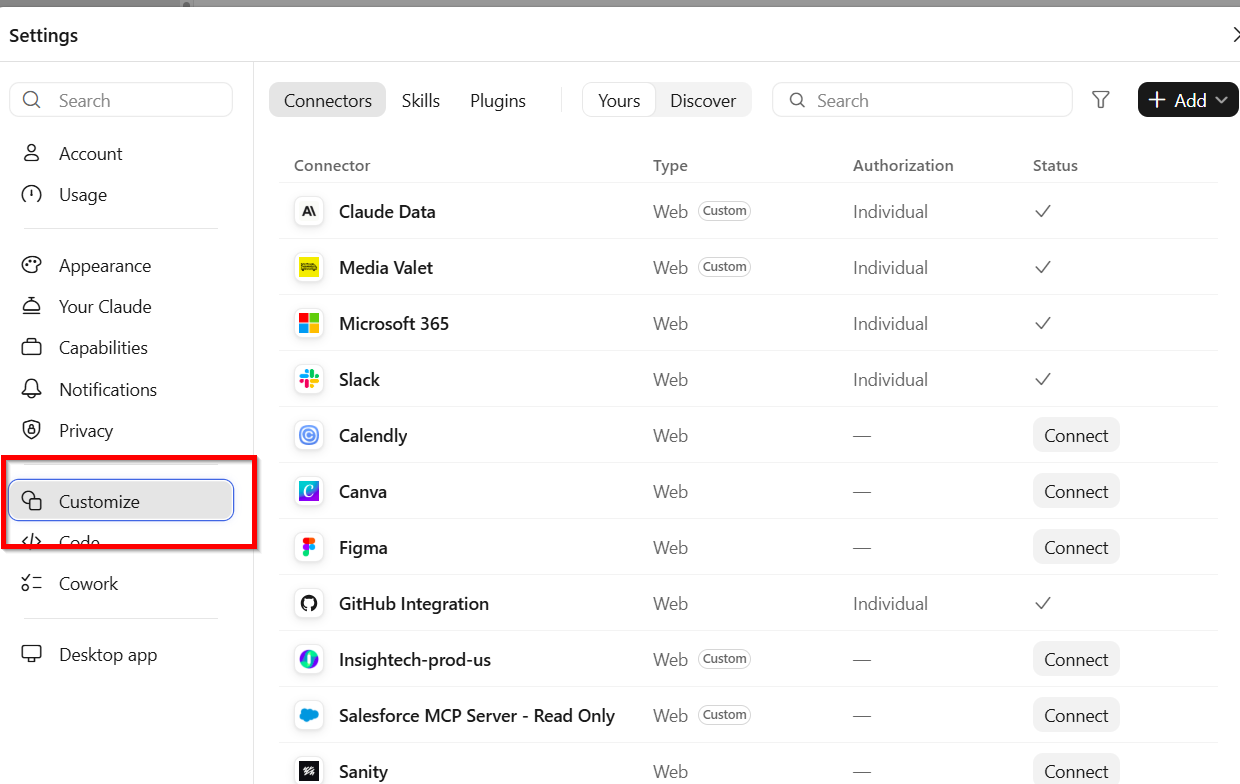
From here, you can setup the following Connector types
Salesforce Connector
To connect your Salesforce account to Claude, from the connectors screen, click on Connect button to the right of Salesforce MCP server - Read Only.
A new web browser window will open, click Continue connecting
Click on Use custom Domain at the login screen.
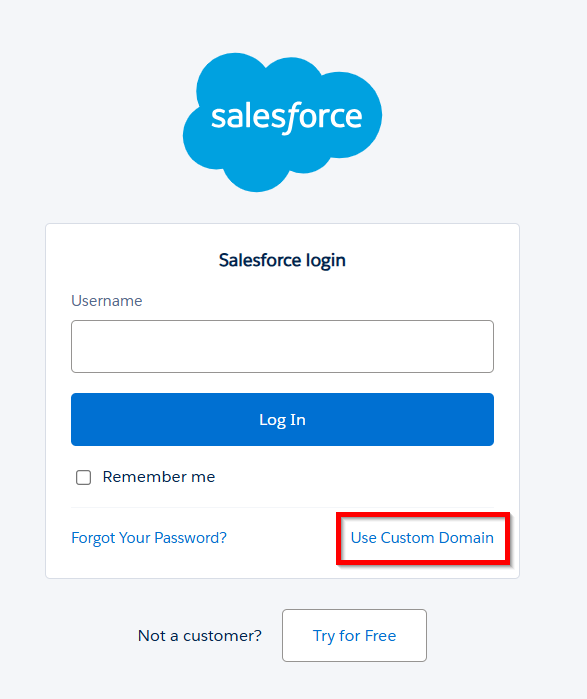
Enter ozh then click Contiune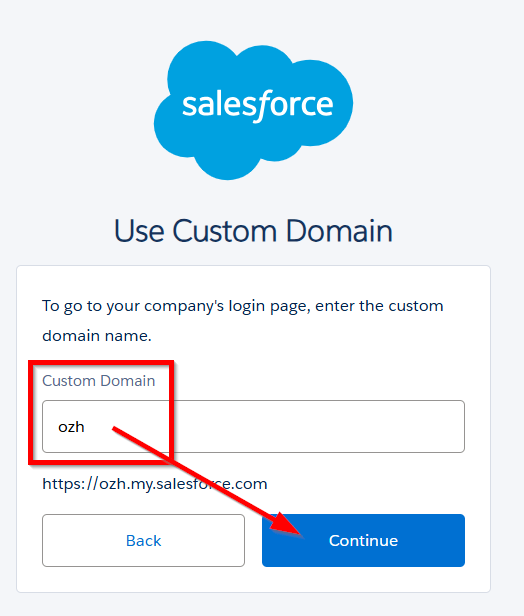
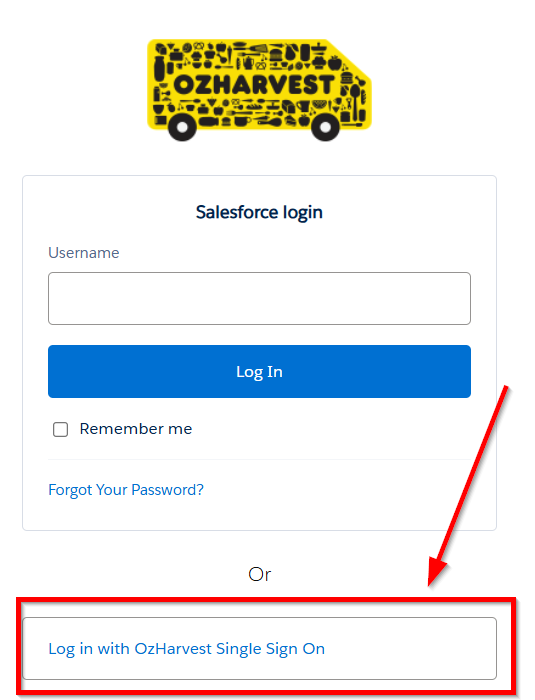
At the OzHarvest login screen, click the Log in with OzHarvest Single Sign On button.
Slack Connector
To connect your Slack account to Claude, from the connectors screen, click on Connect button to the right of Slack.
A new web browser window will open, click Continue connecting.
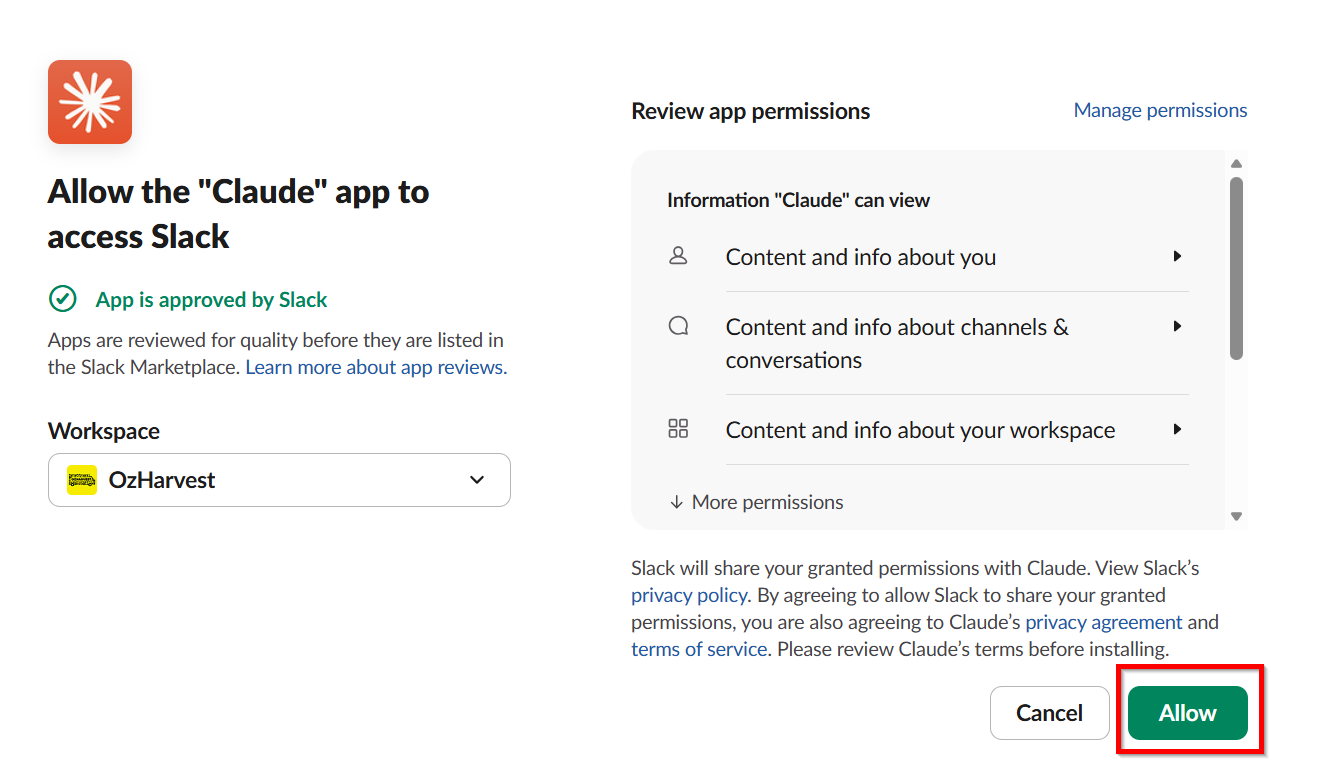
At the approval screen, click Allow to allow Slack and Claude to share infomation.
Microsoft 365
To connect your Microsoft 365 account to Claude, which will allow access to your email, SharePoint and OneDrive files. From the connectors screen, click on Connect button to the right of Microsoft 365.
A new web browser window will open, click Continue connecting.
Select your OzHarvest account from the account picker screen.
Done, you will be returned to Claude
Checking connector status
To check your connector status, from the customize screen, find the connector in question, and you can review the status on the right-handt hand side. Green tick, means it is connected.