
Howto Log the Salesforce Plug-in in for Outlook
- Open an email in Outlook that you want to attach to Salesforce, then click the Salesforce icon in the menu bar to open the Salesforce panel.
- Click the Pin icon to keep the Salesforce panel open while you're using Outlook. This helps prevent the plug-in from logging you out unexpectedly.
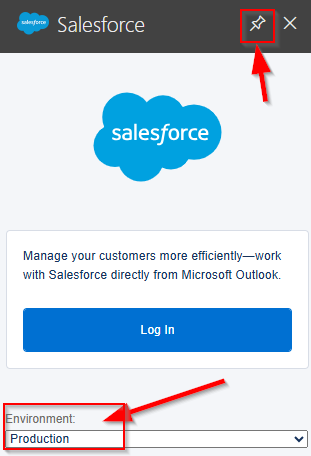
- Click Log In to start the login process.
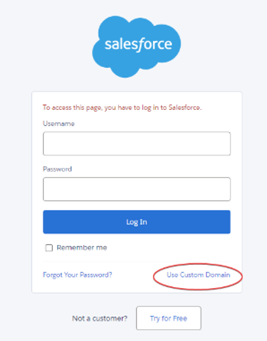
- When the login window appears, select Use Custom Domain.
- Enter ozh as the custom domain. You should see the full domain shown as
https://ozh.my.salesforce.com. Click Continue.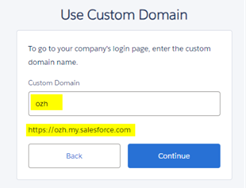
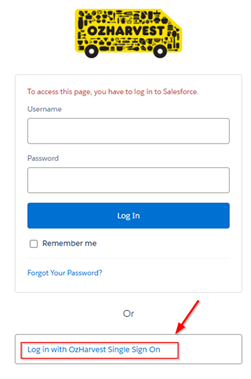
- You'll be returned to the login page, now showing the OzHarvest van logo. This confirms you're on the correct login page.
- Click Log In with OzHarvest Single Sign On. You'll be signed in to Salesforce inside Outlook.
Important: Always keep the Salesforce panel pinned. This keeps your session active and helps prevent login issues down the track.
Need a hand? Just reach out to helpdesk.