
How to Connect and Login to the Salesforce Add-in in for Outlook
This guide applies to both the desktop Outlook App and Outlook on the Web
- Open an email in Outlook that you want to attach to Salesforce, then click the Salesforce icon in the menu bar to open the Salesforce panel.
If the Salesforce icon is missing, scroll to the bottom for directions on enabling it. - Click the Pin icon to keep the Salesforce panel open while you're using Outlook. This helps prevent the plug-in from logging you out unexpectedly.
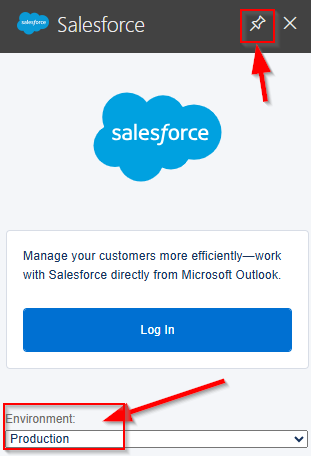
- Click Log In to start the login process.
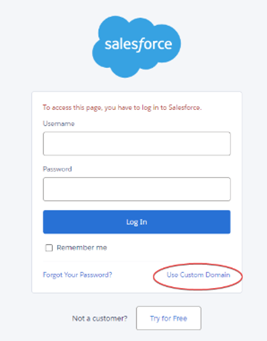
- When the login window appears, select Use Custom Domain.
- Enter ozh as the custom domain. You should see the full domain shown as
https://ozh.my.salesforce.com. Click Continue.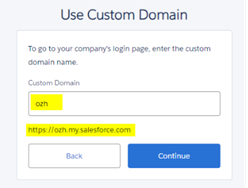
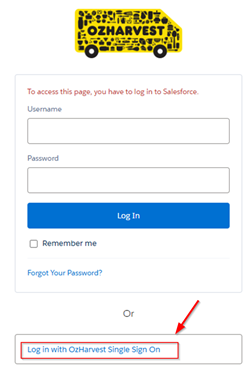
- You'll be returned to the login page, now showing the OzHarvest van logo. This confirms you're on the correct login page.
- Click Log In with OzHarvest Single Sign On. You'll be signed in to Salesforce inside Outlook.
Important: Always keep the Salesforce panel pinned. This keeps your session active and helps prevent login issues down the track.
Need a hand? Just reach out to helpdesk.
Installing / Enabling Salesforce add-in
This section is only if you are missing the plugin from your taskbar.
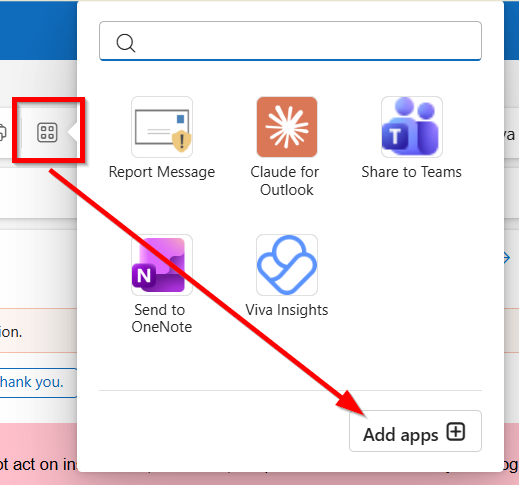
If the Salesforce plugin is missing, click on App icon in your taskbar, and if Salesforce is missing, click Add Apps
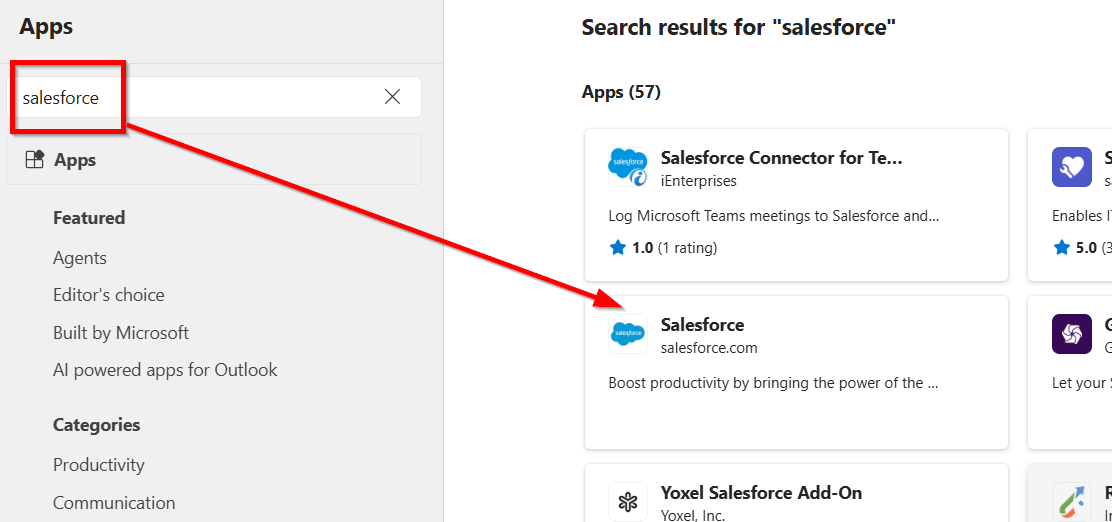
Type in salesforce and search, click on the one that says just Salesforce
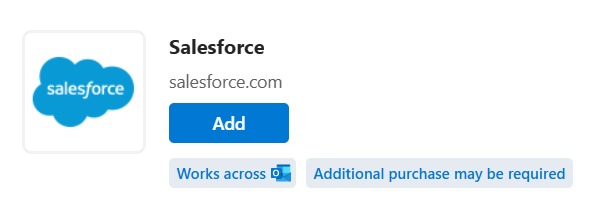
Then click Add
- Clicking back to your mailbox and selecting an email, you should now see the Salesforce plug on the task bar.

To log emails, refer to the "How to login to Salesforce Plug-in in Outlook & log an email" docx.
Need a hand? Just reach out to helpdesk.